Why IPTV Buffers and How to Fix It
Buffering is one of the most common IPTV complaints, but the solution often starts with the local setup rather than an immediate plan change.
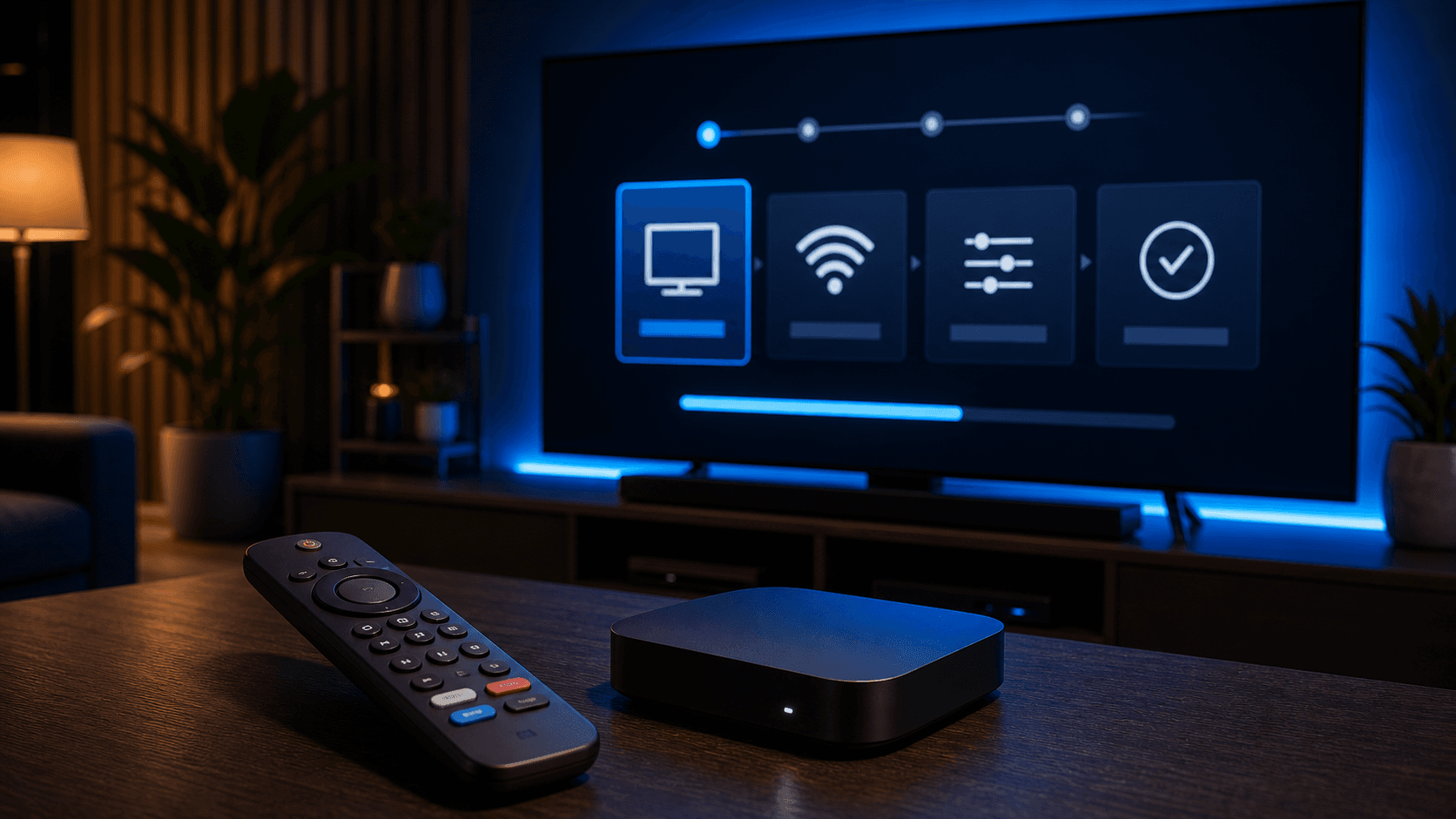
Buffering is the issue that frustrates IPTV users more than anything else. It interrupts the experience, makes it hard to know whether the service is good, and often leads people to make fast decisions before they have actually isolated the cause. The reality is that buffering can come from several places at once.
Sometimes the problem is local, such as weak Wi-Fi, a crowded device, or an app setting that needs adjusting. Other times, the issue is more connected to how the app loads content or how the first setup was completed. This is why a calm, step-by-step troubleshooting process works better than changing everything at once.
In this guide, we will look at the most common reasons IPTV buffers and the practical fixes that help users in Canada improve playback quality on Smart TVs, Firesticks, Android TV boxes, and other common devices.
Start with the simplest explanation: your local network
The first place to look is your home internet environment. IPTV depends on consistent data flow, so even a plan with strong server quality can feel unstable if the local network is weak. Wi-Fi dead zones, temporary router issues, and heavy traffic from other devices are very common causes of buffering.
Restart the modem and router, then restart the streaming device itself. This basic reset solves more issues than many users expect. If possible, test the same content again from a closer position to the router or on a cleaner network path.
If you use Wi-Fi in a large home, the room where the main TV sits matters. A stream that works perfectly near the router may buffer in a far bedroom or basement. That is not always a service issue. It is often a signal quality issue.
Check whether the problem is device-specific
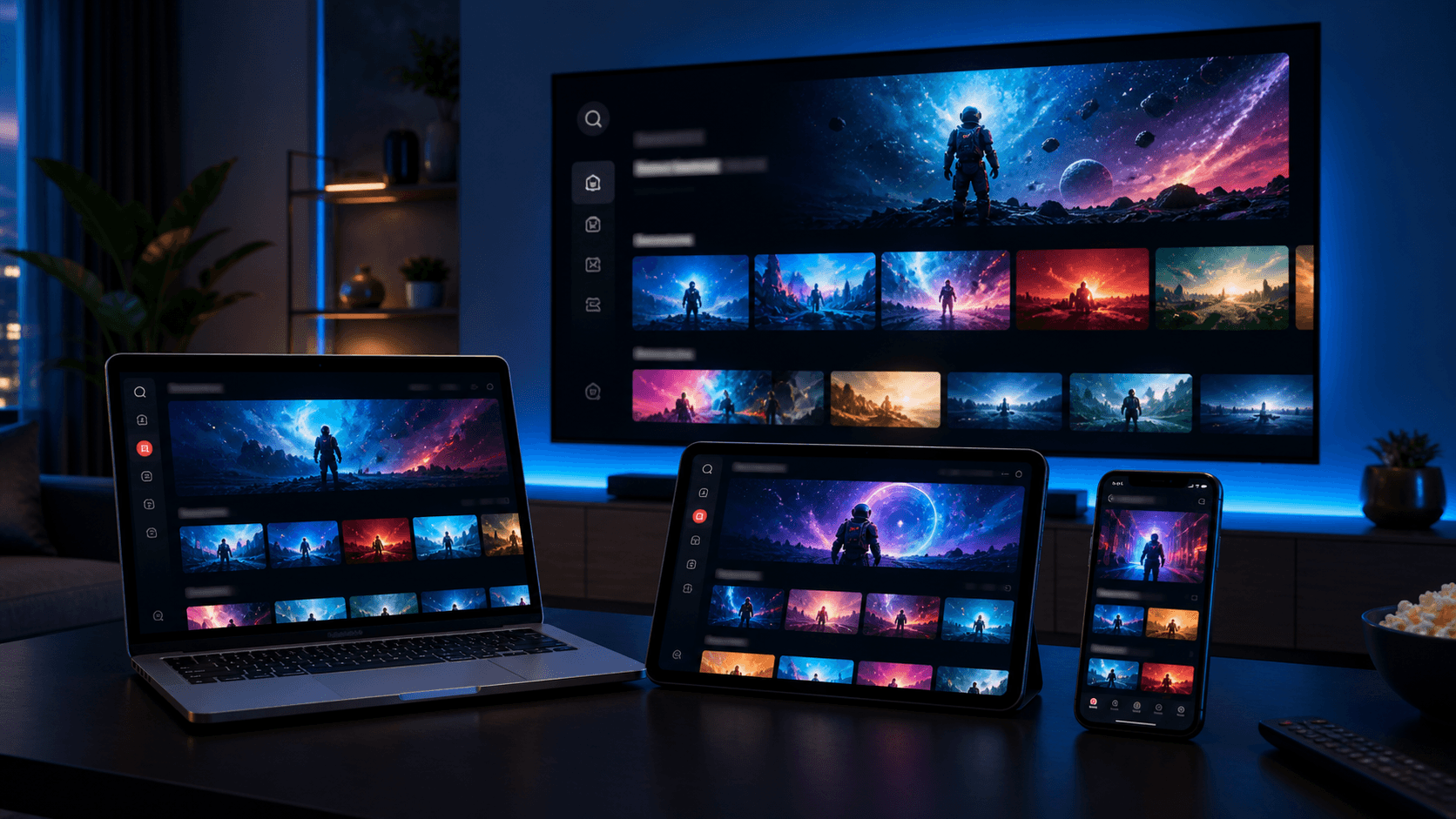
A useful troubleshooting test is to compare devices. If IPTV buffers on your Smart TV but plays more smoothly on a phone or tablet using the same network, the television setup may need more attention. That could mean the app is not the best fit, the TV has limited resources, or the network path is weaker in that part of the room.
Firestick and Android TV boxes can also behave differently under the same conditions. Some devices manage apps and storage better than others, so performance may improve when the service is tested on hardware that is less crowded or more recently updated.
This comparison does not solve the issue by itself, but it tells you where to focus next. If one device performs well, you know the service may be fine and the local setup deserves closer attention.
Review the app and playback settings
The player app can strongly influence buffering behavior. Some apps offer playback buffer controls, decoder settings, or other performance-related options. If you change those settings carefully and test after each change, you may find a combination that works better on your device.
Avoid changing everything at once. If you switch apps, adjust the decoder, clear cache, and reset the router all in one session, it becomes impossible to tell which step actually helped. Small controlled tests produce better results and less confusion.
It is also worth refreshing the guide and allowing the first sync to complete. Sometimes a newly installed app feels unstable because it is still importing categories, guide data, or on-demand sections behind the scenes.
Why the first sync can feel slower
The first time an IPTV app loads a new account, it may import a large amount of data at once. During that period, the app can feel slower than it will during normal daily use.
That is why many providers recommend giving the setup time to settle before making a final judgment about the service quality.
Why app choice matters for stability
An app that feels perfect on one device may not be ideal on another. Remote navigation, storage management, and playback behavior can all vary.
Switching to a better-matched app is sometimes the cleanest long-term fix, especially on Smart TVs and older streaming devices.
Clean up the device before blaming the service
Many streaming devices run into trouble because they are overloaded. Low storage, old apps running in the background, and outdated software can all create lag that shows up during IPTV playback. This is especially common on Firesticks and Android TV boxes that have been used for many different streaming apps over time.
Remove unused apps, check for updates, and restart the device after major changes. These maintenance steps help more than people expect because they improve the environment the IPTV app relies on.
If you use a Smart TV, even switching to a simpler compatible app can feel like a device cleanup, because the app may use resources more efficiently.
Use trials and testing habits more effectively
One reason some users get stuck with buffering is that they do not test the service under realistic conditions. A quick daytime check on a secondary device does not tell you much if you usually watch sports in the evening on the main television.
The better approach is to test during your actual viewing hours and on the screen that matters most. Open live TV, switch categories, check a few demanding streams, and see how the app behaves after you have used it for a while rather than only in the first minute.
A free trial is useful because it allows you to run those realistic tests before choosing a longer plan. Buffering issues are much easier to evaluate when you use the trial deliberately instead of casually.
When to contact support and what to tell them
If you have restarted the network, tested another device, and reviewed the app settings, support can help much faster when you provide specific information. Mention the device name, app name, whether the issue affects live TV or on-demand content, and whether the buffering appears on all streams or only some categories.
Clear problem descriptions lead to clearer solutions. A message like “buffering on Firestick in one room during live sports after ten minutes” is much more useful than “nothing works.” Good support teams can often spot patterns quickly when the details are precise.
The goal is not to prove that something is wrong. The goal is to narrow the problem until the next step becomes obvious. That is how buffering gets solved with the least frustration.
A repeatable buffering diagnosis routine
When IPTV buffers, the fastest path to a fix is to follow the same sequence every time. First restart the router and the device. Then retest the same stream on the same app. If the issue remains, compare another device on the same network. If the second device performs better, the original device setup is probably the main focus. If both struggle, the network path deserves more attention.
The next step is to check the app itself. Refresh the guide, confirm that the first sync has completed, and test another category such as on-demand content. This helps you see whether the issue is broad or limited to one type of playback. Controlled comparisons are the key to good troubleshooting because they turn vague frustration into useful clues.
After that, look at the local environment. Is the main TV far from the router? Is the Firestick low on storage? Has the Android box been overloaded with old apps? Those small details matter more than people expect. The more precisely you isolate the issue, the less likely you are to make unnecessary changes.
This routine is not glamorous, but it works. Most buffering problems become much easier to understand when you stop guessing and start comparing one variable at a time. That is the mindset that leads to real improvement instead of endless trial and error.
Over time, this method also makes you a more confident user. Instead of reacting emotionally to every rough stream, you learn to ask better questions about the network, the device, the app, and the time of day. That is what turns troubleshooting into a manageable habit.
- Restart the network and device first
- Retest the same stream before changing apps
- Compare another device on the same network
- Check whether guide and VOD behave differently
- Use support once your tests reveal a clear pattern