How to Install IPTV on Smart TV: Samsung, LG, Hisense Guide
Smart TV setup can be very clean when you use the right app, the correct login format, and a step-by-step process that fits your television brand.
Smart TVs are one of the most comfortable ways to watch IPTV because everything happens on the main screen without extra hardware. For many households in Canada, that simplicity is the goal. If the television already has the right app support, you can move from activation to watching in a very short amount of time.
The challenge is that Smart TV platforms are not all the same. Samsung, LG, and Hisense each have their own app availability, store policies, and interface quirks. That means the best IPTV setup path depends on the specific television you own rather than a single universal method.
In this guide, we will look at how to prepare your TV, select a compatible player app, enter your account details correctly, and troubleshoot the most common issues that show up during first-time Smart TV installation.
Start with your TV brand and operating system
Before downloading any app, identify the TV brand and platform. A Samsung Smart TV may offer a different app lineup than an LG or Hisense model, and even within the same brand, app support can vary between older and newer televisions. This is why TV-specific support advice is more useful than generic IPTV instructions.
Check that the television is connected to a stable home network and that system updates are current. IPTV apps rely on both the app itself and the TV operating system, so an outdated platform can create login or playback issues that look more serious than they really are.
It is also worth checking how comfortable you are typing with the TV remote. Some users prefer scanning a code or using a mobile companion step if the app allows it. Anything that reduces typing mistakes will make the first setup faster.
Choose the best Smart TV IPTV app for your setup
A compatible player app is the foundation of a good Smart TV experience. On televisions, interface simplicity matters even more than on phones or tablets because navigation happens with a remote. The best app is usually the one that combines clear categories, fast loading, and easy playlist or credentials entry.
If you are comparing apps, pay attention to how each one handles live TV, favorites, and guide data. Some apps feel polished on a large screen but are less flexible. Others are powerful but require more manual setup. Support can usually recommend the best fit for your exact TV model and your level of experience.
When in doubt, start with the most straightforward recommended option. Once you confirm the service works well on the television, you can always consider a different player later if you want more customization.
Why remote-friendly navigation matters
An app that feels excellent on a phone may feel slow or awkward on a television if the menu structure is too dense for remote control use.
A clean layout with obvious sections, responsive scrolling, and strong guide visibility usually leads to better long-term satisfaction on Smart TV.
How support improves the app decision
The best provider will not simply list app names. They will explain which one tends to work best on your TV brand and why.
That kind of recommendation saves time and reduces the risk of installing several apps before finding the right one.
Install the app and enter your IPTV details
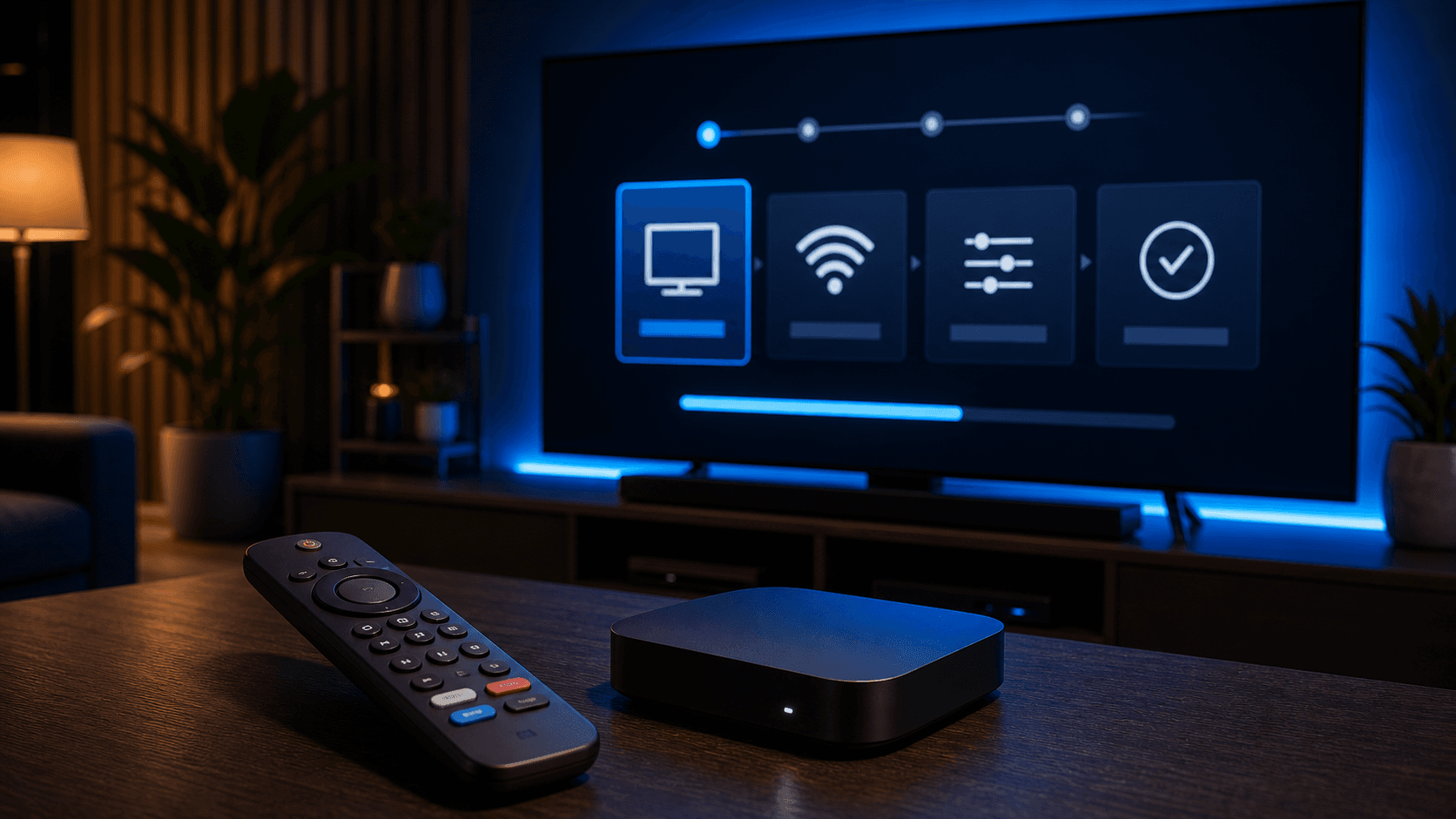
Once you install the recommended app, open it and read each setup screen carefully. Some Smart TV apps ask for a device ID or activation step before you can add the service details. Others go directly to playlist or Xtream-style login. Following the provided instructions exactly is essential.
When entering credentials, slow down and confirm every field. TV remotes are not forgiving, and small typing errors are one of the most common reasons new users think the service is not working. If the app supports a faster activation path, use it when possible.
After you save the details, give the app time to load the library. The first sync may take longer on a Smart TV than on a phone, especially if the app is pulling live categories, on-demand sections, and guide data all at once.
- Use the exact login style provided by support
- Check every typed field before submitting
- Wait for the first sync before judging the app
- Refresh the guide after the initial import if needed
Optimize the Smart TV experience after setup
Once the service loads, test the experience from a viewer’s perspective instead of an installer’s perspective. Browse between sections, open the guide, switch categories, and check whether the app remembers your position. Those small usability details matter a lot on a television used every day by multiple people.
If the app offers playback preferences, experiment carefully. You may see options related to stream buffer behavior, subtitles, or interface theme. Change one setting at a time and test a few channels or on-demand titles after each change so you know what actually improved.
Favorites are especially helpful on a Smart TV. Curating the channels and categories you use most often makes the service feel faster and more organized, which is ideal in a shared family environment.
Troubleshooting IPTV on Samsung, LG, and Hisense TVs
If the app is unavailable in the store, do not assume the television cannot be used. Many providers can recommend an alternative app that suits your brand or model. Smart TV support changes over time, so asking for the current preferred route is often the fastest fix.
If playback is choppy, begin with the network. TVs placed far from the router can behave differently than smaller devices closer to the Wi-Fi source. Test another network if possible, or move the TV to a stronger signal path before you start changing lots of app settings.
If the guide appears incomplete or categories are missing, wait for the first import to finish and then refresh the content. Smart TV apps may load data in stages, and the final experience can look much better ten minutes later than it does in the first minute.
When Smart TV is the best IPTV choice
Smart TV is often the best choice for users who want the cleanest living-room experience with the fewest separate devices. When the app is compatible and the setup is explained well, it becomes one of the easiest ways to enjoy IPTV at home.
It is especially appealing for households that prefer one main television experience rather than jumping between several devices. As long as the provider offers clear app guidance and setup support, Smart TV can feel more straightforward than many people expect.
If you are still deciding, review your television model, request the recommended app path, and compare that information with the installation guide and pricing page. A little preparation goes a long way toward a smooth first setup.
How to decide between built-in TV apps and external devices
One of the most practical questions for Smart TV users is whether the built-in television app path is enough or whether a Firestick or another streaming device would offer a better long-term experience. The answer depends on the app support available on your specific television, how responsive the interface feels, and whether you need more flexibility than the TV platform provides.
If the TV app is easy to install, the guide looks clean, and playback feels stable during your trial, the built-in route is usually the most elegant option. It keeps the setup simple, reduces hardware clutter, and gives the household a familiar one-remote experience. That is especially attractive for living rooms where simplicity matters more than deep customization.
On the other hand, if the app selection is limited, typing credentials with the TV remote feels frustrating, or the television feels underpowered, an external device may be the better choice. That does not mean the TV was a bad idea. It simply means the best IPTV experience sometimes comes from pairing the television with a more flexible streaming device.
The smartest approach is to compare comfort as well as compatibility. Ask yourself whether the app is easy to browse from the couch, whether the guide is readable, whether favorites are convenient to manage, and whether the app responds quickly enough for daily use. Those are the factors that determine whether Smart TV remains the best long-term home for the service.
- Test the built-in app before buying extra hardware
- Compare app availability by TV brand and model
- Judge remote navigation and guide readability
- Consider an external device if the TV feels limited
- Choose the setup that feels best in daily use